FOLDERQUICK · MAC

The folder you use most, one click away in the menu bar
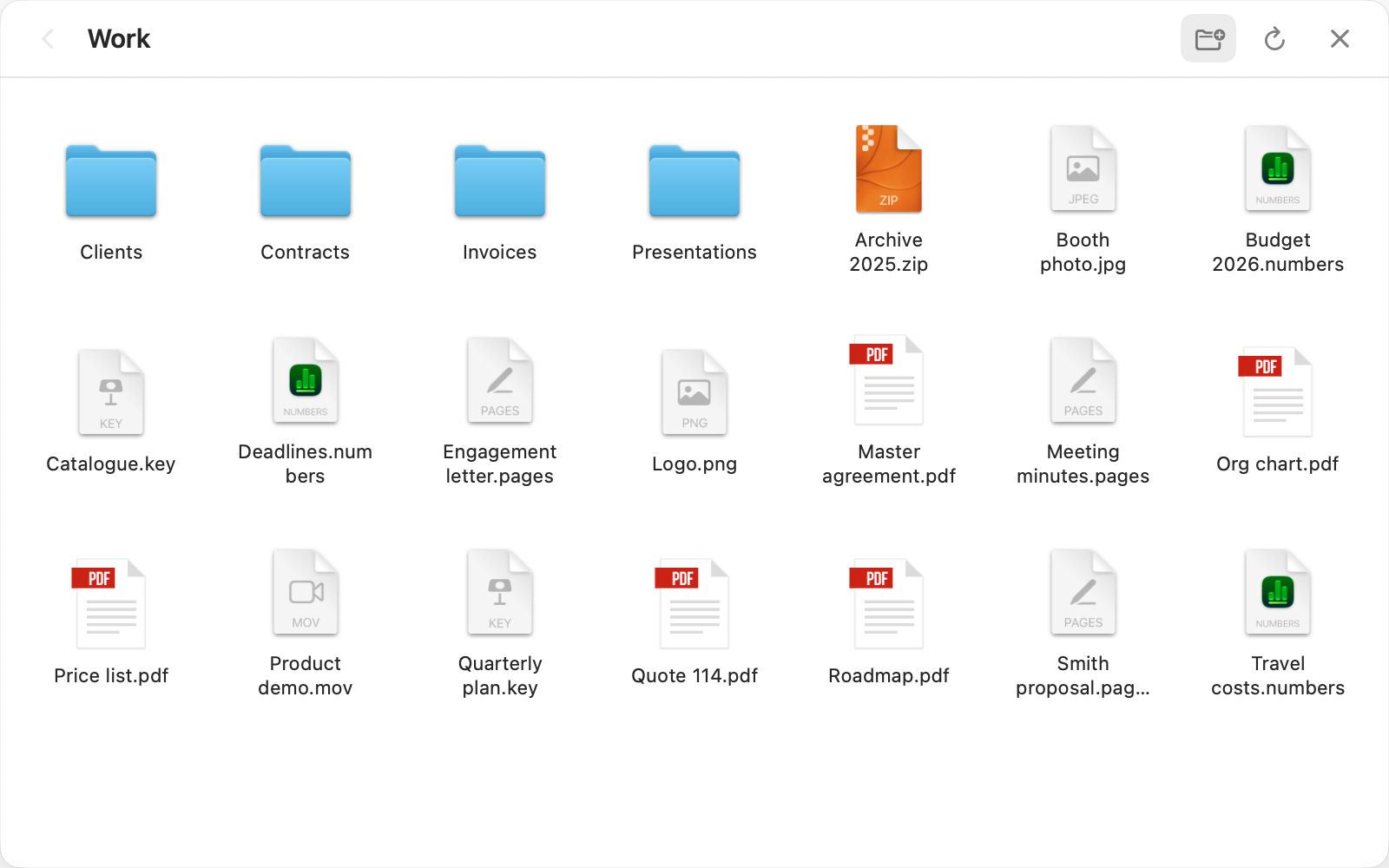
Click the icon and a panel appears with your files: open them, drag them where you need them, preview them. Then the panel goes away and you get back to work.
FEATURES · 4
Open
Double-click or ↵ to open a file or enter a subfolder. The arrow keys move around without the mouse.
Preview
space shows Quick Look for the selected file, as in Finder.
Drag
Take files out of the panel, into another app or an email. Drop new ones onto the panel or a subfolder to copy or move them.
Tidy up
Rename, create folders, move to Trash, copy the path or show the item in Finder with a right-click.
HOW TO OPEN IT · 4
Menu bar icon
A click shows or hides the panel. Always on.
Shortcut
A key combination of your choice, working in any app.
Shake
Shake the pointer left and right. Off until you turn it on.
Notch
Move the pointer onto the notch, on MacBooks that have one. Off until you turn it on.
FREE
The app is free and complete. There is an optional one-off tip inside for anyone who wants to support the work: it unlocks nothing, because there is nothing to unlock.
HELP · 4
The panel opens by itself
Mouse shake is on. Turn it off in Preferences › Other activations.
The shortcut doesn't work
Another app may be using the same combination. Pick a different one in Preferences › Shortcut.
The folder is not readable
This happens when the folder was moved, renamed or sits on a disk that isn't connected. Choose it again in preferences.
Where preferences are
Right-click the menu bar icon, then Preferences…
For questions, problems or requests write to io@fabriziolodi.com: replies in English or Italian.